
If you have ever opened Task Manager and noticed a process called what is WMI Provider Host running in the background, you may have wondered what it actually does and whether it is safe. Many users become concerned when they see unfamiliar system processes, especially if CPU usage increases.
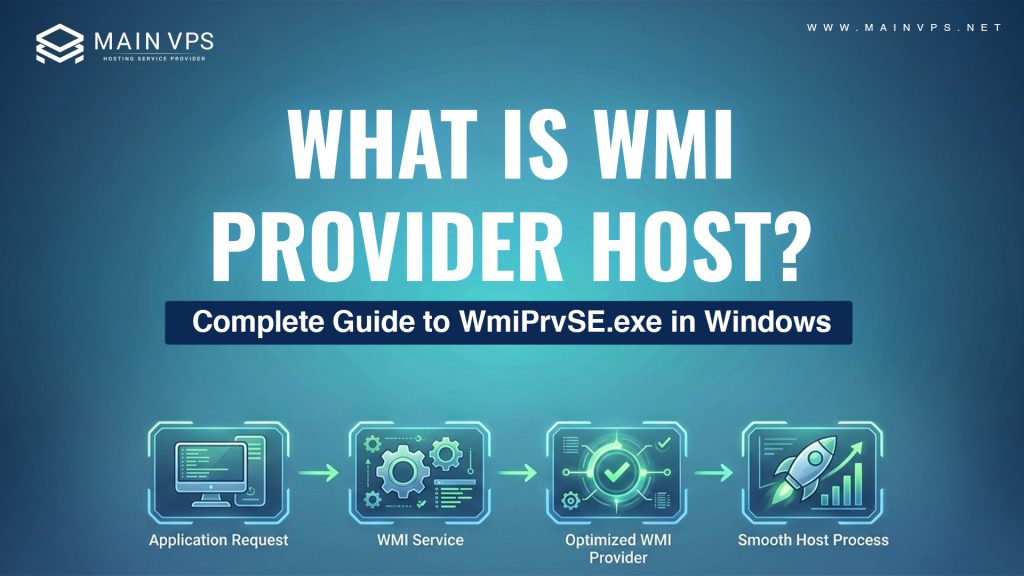
In simple terms, WMI Provider Host (WmiPrvSE.exe) is a core background service in the Microsoft Windows operating system. It plays a crucial role in allowing applications, system tools, and administrative scripts to retrieve information about your computer.
What Does WMI Mean?
WMI is defined as Windows Management Instrumentation. It is a management platform included within the Windows server guide that enables a common mechanism for various software or system components to retrieve data regarding hardware components, operating system settings, or running services.
WMI is a connection bridge between Windows and various applications that communicate with Windows as follows:
- How much RAM is installed?
- What is the CPU usage?
- What programs are running?
- What drivers are installed?
- What is the network setup?
WMI acts as a data collector and transmits this data to the requested applications.
A Windows service called WMI Provider Host is responsible for handling WMI operations. It is a Windows executable file named WmiPrvSE.exe.
What Is WMI Provider Host (WmiPrvSE.exe)?
WMI Provider Host is the executable file that handles WMI operations. The file name is WmiPrvSE.exe, and it typically runs from this location:
It acts as a host process that loads different WMI providers. These providers gather specific types of data from your system and pass it to applications that request it.
In short, WMI Provider Host helps software monitor and manage your computer.
Why is the WMI Provider Host Always Running?
The WMI provider host process operates because many Windows features and applications rely on it. For example:
- Task Manager
- System Monitoring Tools
- Antivirus Programs
- Backup Programs
- Network Management Tools
- Enterprise Administration Scripts
Any time these applications need some information from the system, the WMI provider host process provides the necessary information.
The process operates quietly in the background. It consumes a negligible amount of CPU and memory.
What Does WMI Provider Host Actually Do?
WMI Provider Host, which is actually the WmiPrvSE.exe process, is a vital process of the Microsoft Windows operating system. It operates behind the scenes to offer organized system information to applications, services, and system management tools. It essentially operates as a bridge between the Windows operating system and the applications that request the information. Rather than the applications accessing the system components directly, the WMI Provider Host high cpu safely provides the necessary information.
The functions of the WMI Provider Host process are as follows:
1. System Monitoring
WMI Provider Host helps applications monitor the real-time performance of the system. Applications such as Task Manager, system analyzers, and other monitoring tools utilize the services of the WMI provider host to collect the following information:
- CPU usage statistics
- Memory (RAM) usage statistics
- Read/write disk usage
- Network bandwidth usage
- Running processes
If the WMI provider host were not available, the aforementioned tools would be unable to display the information.
2. Hardware Information Access
WMI can supply hardware-related data to system-related applications as well as other external applications. This data can include the following:
- Motherboard brand and model
- BIOS version and release date
- Storage drive type and status
- Graphics card model and driver version
- Processor model and cores
- Battery status (for laptops)
This is particularly useful for diagnostic, driver update, and inventory management-related applications. Instead of manually accessing hardware-related data, an application can use WMI.
3. Remote Management
In the context of enterprise environments and business scenarios, WMI plays a vital role in the remote management of systems. IT administrators utilize WMI to manage multiple computers on a network. WMI enables administrators to:
- Remotely check the status of systems
- Remotely install software
- Remotely update system settings
- Remotely check for security updates
- Remotely restart systems
This is because WMI supports remote access.
4. Automation and Scripting
The WMI has a close relationship with PowerShell and scripting tools. System administrators and other advanced users can use it for automating processes like the following:
- Generating hardware inventory reports
- Checking the health of systems
- Checking event logs
- Updating software
- Checking configuration compliances
The above processes help in saving time and preventing errors. The WMI acts as a data provider for the scripts.
5. Event Logging and Diagnostics
Windows uses WMI to collect diagnostic data and log system events. When something goes wrong, such as the following:
- Driver failures
- Application crashes
- Service interruptions
WMI helps gather relevant information so Windows hosting in India can record it in the Event Viewer. This allows users and administrators to troubleshoot issues more effectively.
6. Security and Policy Management
WMI also assists in enforcing system policies and security monitoring. Enterprise security tools use WMI to:
- Check firewall status
- Monitor antivirus status
- Verify encryption settings
- Track user login activity
This helps maintain compliance and system integrity in corporate environments.
7. Software and Application Queries
Many software programs use WMI to gather environment details before installation or during operation. For example, an installer may check the following:
- Available disk space
- Windows version
- Installed frameworks
- Hardware compatibility
WMI provides accurate responses so software can adjust accordingly.
Is WMI Provider Host Safe?
Yes, the legitimate WMI Provider Host process is completely safe and is an official Windows component.
However, you should verify the file location. The genuine file should be located in:
If you find WmiPrvSE.exe running from a different location, it could potentially be malware pretending to be a system file. In that case, run a full antivirus scan.
Why is the WMI Provider Host Using High CPU?
In a healthy state, the WMI provider host process should be consuming negligible CPU. However, if the WMI provider host process consumes a high percentage of CPU (for example, greater than 20-30%), something else might be causing this.
Possible Reasons for High CPU Consumption by WMI Provider Host
1. Faulty or Outdated Drivers
- Outdated or incompatible drivers can continuously request system data.
- This puts extra load on WMI, increasing CPU usage.
- Common problematic drivers:
- Network drivers
- Graphics (GPU) drivers
- Printer drivers
2. Misbehaving Applications
- Some apps repeatedly request system information via WMI.
- This creates a loop, causing high CPU usage.
- Common examples:
- Antivirus software
- Monitoring tools
- System optimization apps
3. Corrupted System Files
- Damaged Windows files can disrupt WMI functionality.
- This may lead to abnormal CPU usage.
- Causes of corruption:
- Improper shutdowns
- Software conflicts
- Disk issues
4. Malware Infection
- Malware can disguise itself as WmiPrvSE.exe.
- These fake processes consume high CPU resources.
- Check file location:
- Original file →
C:\Windows\System32 - Suspicious location → Possible malware
- Original file →
5. Continuous System Errors
- Repeated system or hardware errors trigger WMI activity.
- WMI keeps processing these events, increasing CPU load.
- Often linked to failing services or hardware issues.
6. WMI Repository Issues
- The WMI repository stores system data.
- If it becomes corrupted, WMI may behave abnormally.
- This can result in high CPU usage.
How to Fix High CPU Usage by WMI Provider Host
If the WMI Provider Host is consuming too many resources, try these solutions:
Restart the WMI Service
Press Win + R
Type
services.mscFind “Windows Management Instrumentation”
Right-click and choose Restart
Restart Your Computer
Temporary glitches often resolve with a simple reboot.
Check Event Viewer
Open Event Viewer
Go to Windows Logs > Application
Look for WMI-related errors
This may help identify which application is causing the problem.
Update Drivers
Update:
Graphics drivers
Network drivers
Chipset drivers
Run System File Checker
Open Command Prompt as administrator and run:
This repairs corrupted system files.
Run Antivirus Scan
Scan your system to ensure no malware is impersonating WMI.
Can You Disable WMI Provider Host?
Disabling the WMI Provider Host is not recommended, as it is a core component for Windows. Disabling it might result in:
- System instability
- Application failure
- Monitoring tools stop working
- Administrative scripts fail
If you are facing high CPU issues, it is better to fix the root cause rather than disabling the service.
WMI Provider Host in Enterprise Environments
In business environments, the role of WMI is significantly greater. It is used for:
- Managing multiple computers
- Managing software installation
- Managing hardware inventory
- Managing automated maintenance tasks
The management of WMI provider host Windows 10 environments without WMI would be significantly more difficult.
Difference Between WMI and WMI Provider Host
Many people confuse these two terms.
- WMI is the management framework
- WMI Provider Host (WmiPrvSE.exe) is the process that runs and manages WMI operations
Think of WMI as the system, and WMI Provider Host as the worker that handles the tasks.
When Should You Be Concerned?
You should investigate further if:
- CPU usage remains high for long periods
- Multiple WMI Provider Host processes appear
- The file is not located in System32
- Your computer becomes very slow
Otherwise, occasional short spikes in CPU usage are normal.
Does WMI Affect Gaming Performance?
In most cases, no. WMI uses minimal system resources and does not impact gaming or daily use. However, if another application is overusing WMI, it could indirectly cause performance drops.
Is WMI Provider Host Important?
Yes, it is extremely important for the WMI provider host Windows 11 functionality. Many system monitoring, security, and management tools rely on it.
Removing or disabling it can create serious system problems.
Final Thoughts
The WMI Provider Host is an essential background process of the Microsoft Windows operating system, and it is responsible for allowing your software applications and system utilities to have access to critical information about your computer. The WMI Provider Host is essentially a communication link between your system and your applications, and it is responsible for providing your system and your applications with hardware, system, and performance data. The WMI Provider Host is normally running smoothly and efficiently in the background, and if your system is experiencing high CPU usage, it is likely not the fault of the WMI but another application or driver trying to continually retrieve system data.